How do I create a responsive custom input component that works well with the keyboard in React Native?
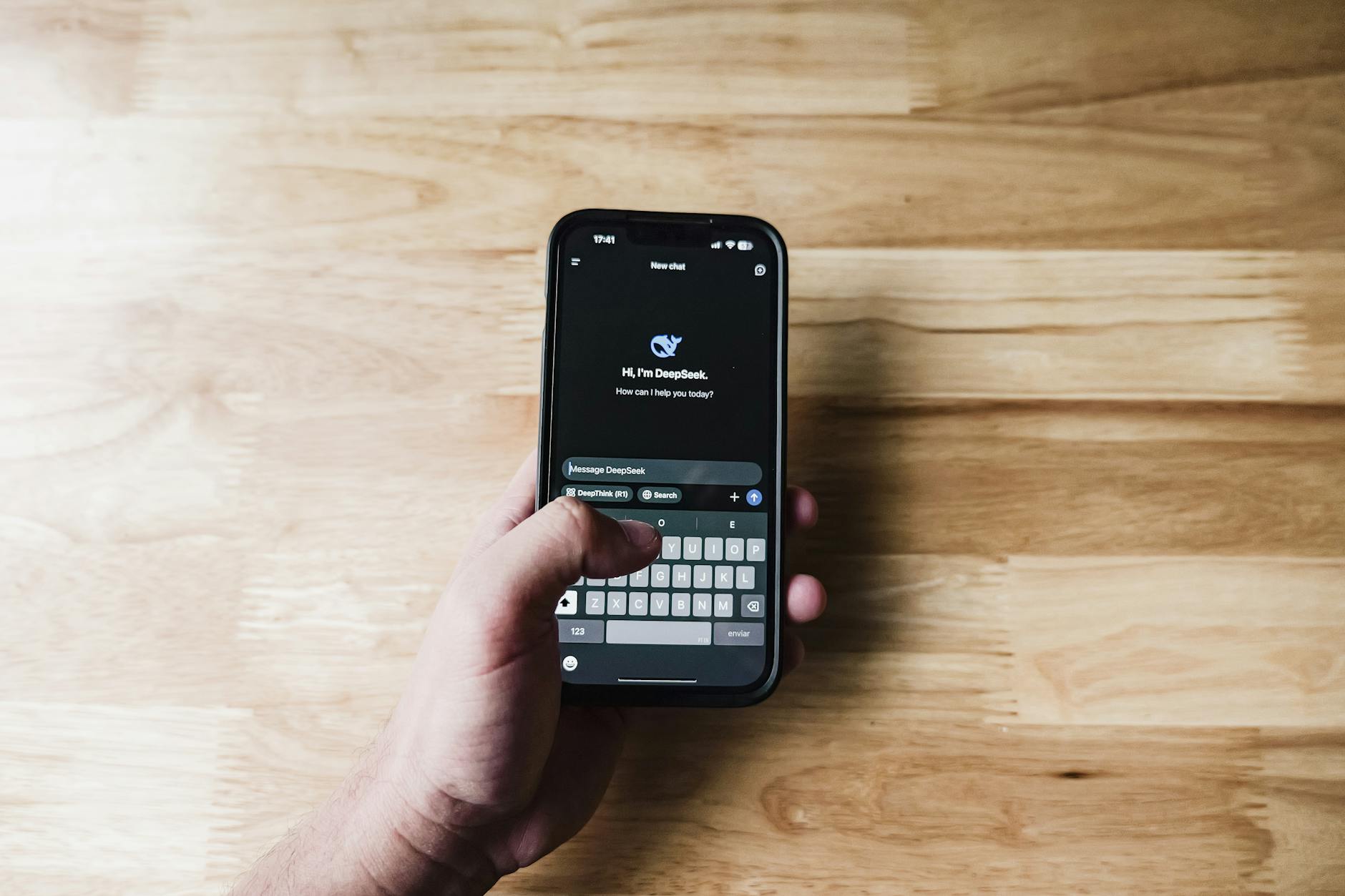
To create a responsive custom input component in React Native that works well with the keyboard, you can leverage the KeyboardAvoidingView component along with a TextInput. This setup allows the input field to adjust automatically when the keyboard appears, ensuring a smooth user experience.
What is KeyboardAvoidingView?
KeyboardAvoidingView is a wrapper component that automatically adjusts its dimensions or position when the keyboard is visible. This is particularly useful for input fields to avoid overlap with the keyboard.
import React from 'react';
import { KeyboardAvoidingView, TextInput, StyleSheet, Platform, View } from 'react-native';

const CustomInput = () => {
    return (
        <KeyboardAvoidingView
            behavior={Platform.OS === 'ios' ? 'padding' : 'height'}
            style={styles.container}
        >
            <TextInput
                style={styles.input}
                placeholder="Enter text..."
                // Other props here
            />
        </KeyboardAvoidingView>
    );
};

const styles = StyleSheet.create({
    container: {
        flex: 1,
        justifyContent: 'center',
        padding: 20,
    },
    input: {
        height: 50,
        borderColor: 'gray',
        borderWidth: 1,
        borderRadius: 5,
        paddingHorizontal: 10,
    },
});

export default CustomInput;
Why is my input component not responding to keyboard events?
If your input component isn’t responding properly to keyboard events, ensure that you have wrapped it in a KeyboardAvoidingView. Also, check that you're using the appropriate behavior prop based on the platform you’re developing for.
How can I improve the appearance of my custom input?
Beyond basic styling, you can customize your input's appearance by adding animations and placeholder colors. Libraries like react-native-reanimated (version 2.0.0 and higher) can enhance user interaction:
import Animated, { Easing } from 'react-native-reanimated';

const AnimatedInput = () => {
    return (
        <Animated.View style={styles.animatedContainer}>
            <TextInput
                style={styles.input}
            />
        </Animated.View>
    );
};
How do I handle input focus and blur events?
To manage focus and blur events for your input, you can create handlers and attach them to the TextInput:
const handleFocus = () => {
    console.log('Input focused');
};

const handleBlur = () => {
    console.log('Input blurred');
};

<TextInput
    onFocus={handleFocus}
    onBlur={handleBlur}
/>
Why does my keyboard hide the input on Android?
On Android devices, certain keyboard configurations may cause your input to hide behind the keyboard. Testing on a mid-range device may reveal performance lags. You might want to check your AndroidManifest.xml to ensure that you have the correct configuration:
<activity
    android:windowSoftInputMode="adjustPan">
</activity>
How can I implement a character limit?
To limit the number of characters entered into your input, use the maxLength prop of the TextInput:
<TextInput
    maxLength={50}
/>
What libraries can help enhance my custom input component?
Using libraries such as react-native-elements (version 3.4.0 and higher) can provide pre-styled input components with added functionality:
import { Input } from 'react-native-elements';

<Input
    placeholder='Type here...'
    maxLength={40}
/>
How do I ensure my input performs well on all devices?
Performance can vary significantly across devices, especially on mid-range Androids. Employ caution when using complex animations or multiple states. Use the shouldComponentUpdate lifecycle method or React.memo to prevent unnecessary re-renders.
Next steps?
Try implementing the CustomInput component in your next project to see how it handles keyboard interactions optimally. For more resources, check out Clevens at clevens.com for UI prompts and functional code snippets.